

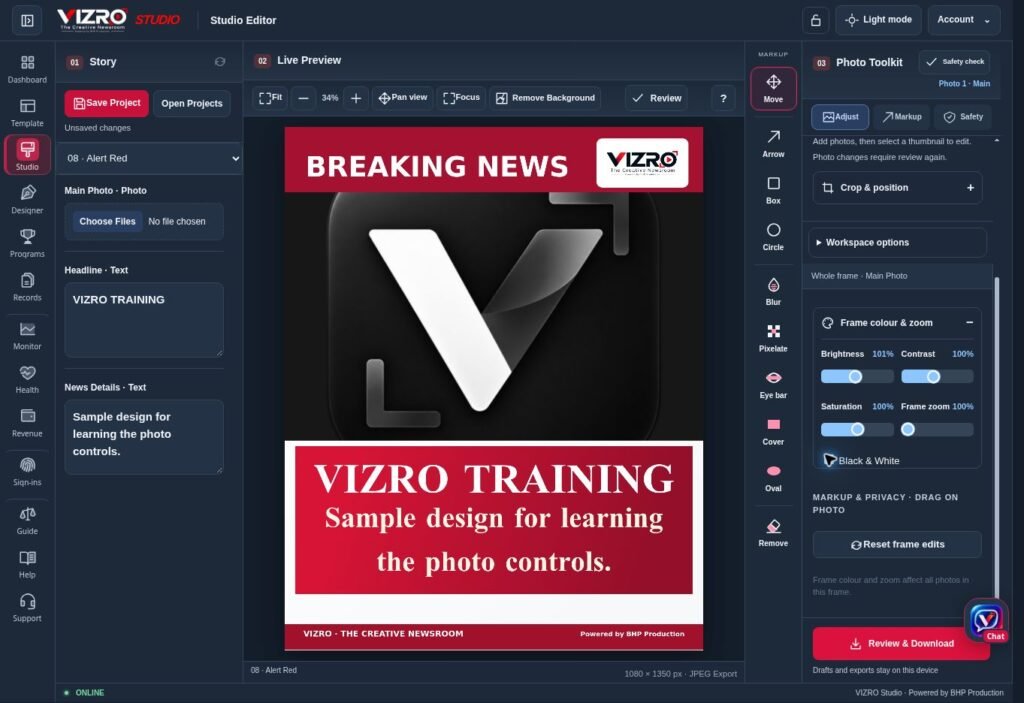
A photograph can explain a story faster than a paragraph, but its framing changes what the audience sees. Photo editing in a graphic is therefore both a design decision and a content decision. VIZRO provides photo adjustments and markup within the available workflow, with controls depending on the selected image and template.
Start with the right image
Choose a photograph that supports the message and that you have permission to use. Check its quality before placing it into a layout. A small or heavily compressed source may not hold up when enlarged.
Look for the important subject and the surrounding context. Decide what must remain visible after cropping. For a news image, make sure the crop does not create a misleading impression of what happened.
Adjust the photo inside the composition
Use the available crop, positioning, zoom, rotation and appearance controls to fit the image into the design. Select the intended image before changing its controls, and compare the result with the text around it.
Keep faces and other essential details clear of headline areas and decorative elements. Adjustments should help the graphic communicate; they should not make the subject look like a different person or alter the meaning of a documentary image.
Check the actual preview after every important change. The same settings can look different on a bright photograph and a darker one.
Use collage when several images are necessary
A collage can show related views without asking the reader to open several posts. Use the arrangements available in the selected VIZRO workflow, including supported two-to-five-photo layouts where provided.
Choose images that belong together and avoid including extra photographs simply to fill space. Check the order, crop and relative importance of each image. Captions or surrounding copy should make the connection clear.
Apply markup and review privacy
Arrows, circles and other marks can draw attention to a useful detail. Blur, pixelation or masking may help with privacy review when used appropriately. Keep the marker precise and check whether it obscures unrelated information.
Inspect the exported file to confirm that the intended mark appears and that sensitive details are not still readable. A privacy mark does not replace consent, editorial judgement or any applicable responsibility.
Before publishing, check image rights, attribution, the relationship between the image and text, and the final crop. Save the editable project where available if the graphic may need revision. Follow the illustrated Studio guide for the controls in your current workspace rather than assuming every template exposes the same photo fields.
