
Skip to content
VIZROVIZROSTUDIOHow to use

VIZRO STUDIO · HOW TO USE

See it. Learn it. Create it.

Follow numbered steps using App, Studio and Designer screenshots. Some pictured controls may differ from the current interface.

English / অসমীয়াActual UI capturesProduct v1.1.0-beta.27

Screens captured from the live staging UI, using training examples. Controls and positions can vary by role, template, device or release.

Choose “Enlarge screenshot” to read small controls. Swipe left/right inside the image; scroll up/down to continue the page. Follow the numbered instructions below.

STUDIO

Studio User Guide

From a template to a reviewed JPEG.

Choose a lesson in this section

Lesson 1 / 5 · Choose a published template
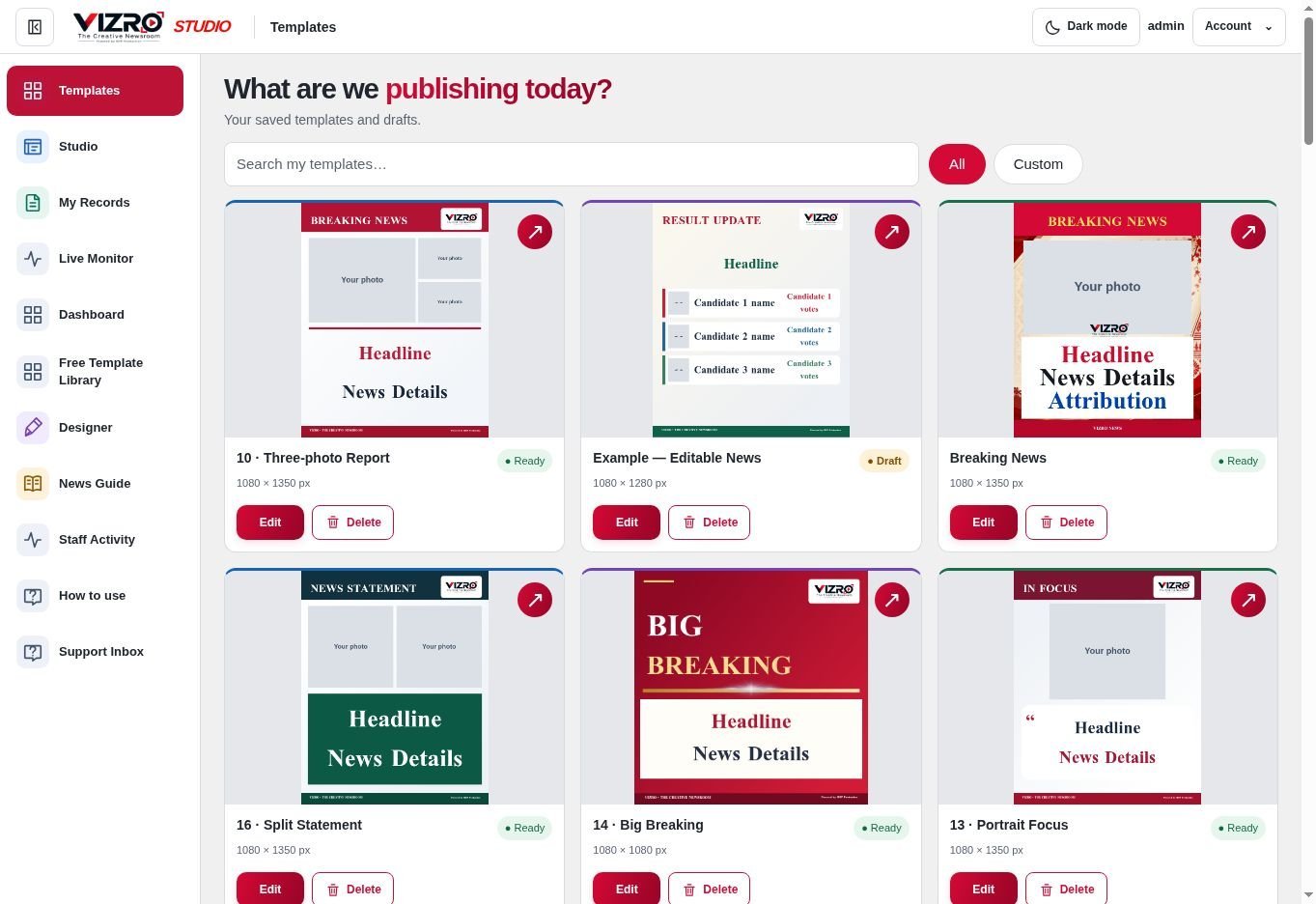
Actual UI: Choose a published template
  1. Open Templates from the side navigation. Search for the design your newsroom uses.

  2. Search by template name. Choose a Ready template to enter Studio; drafts open in Designer for permitted users.

  3. Click a Ready template card to open Studio. If the Channel has no published template, ask a Designer/Admin to create and publish one.
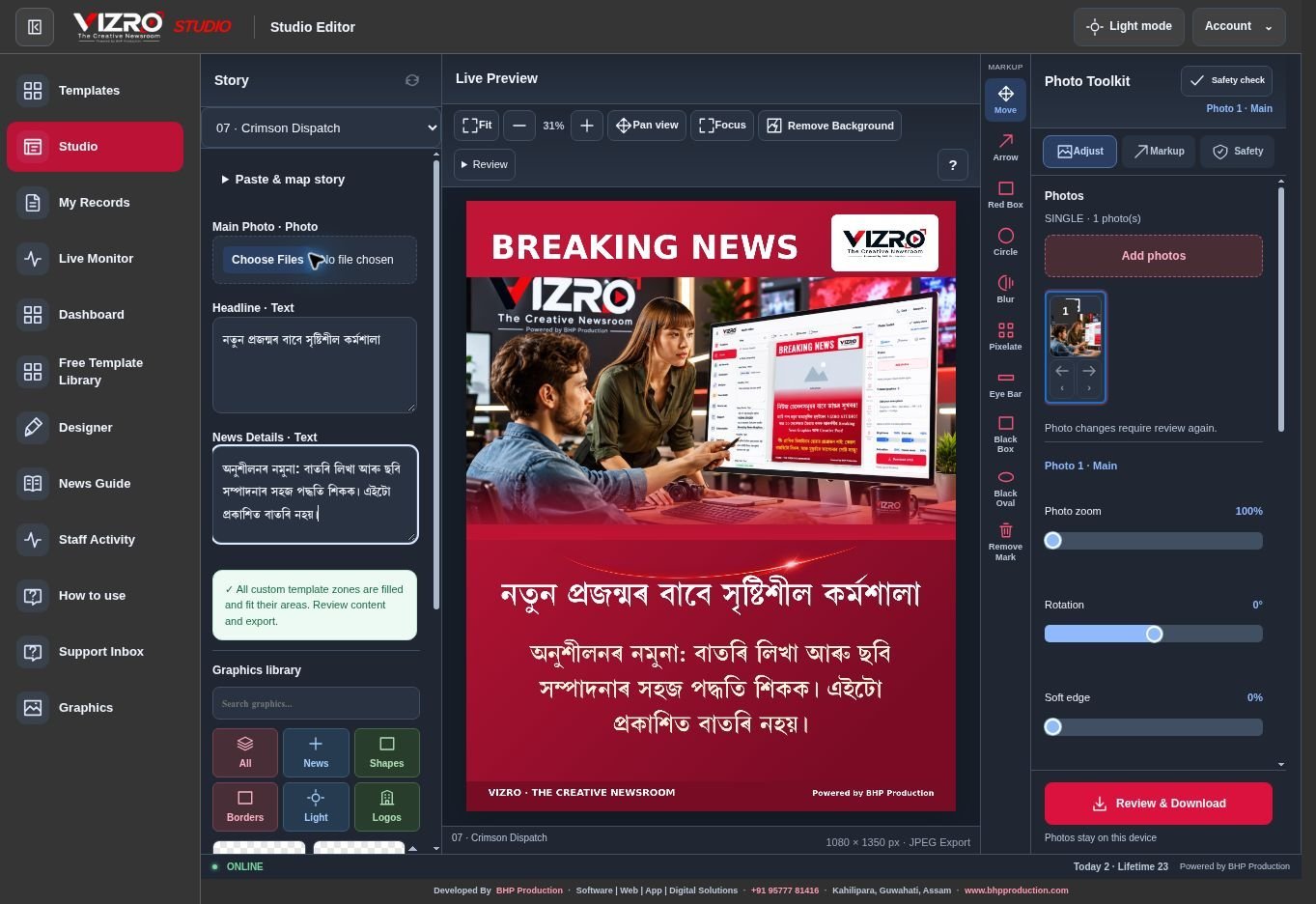
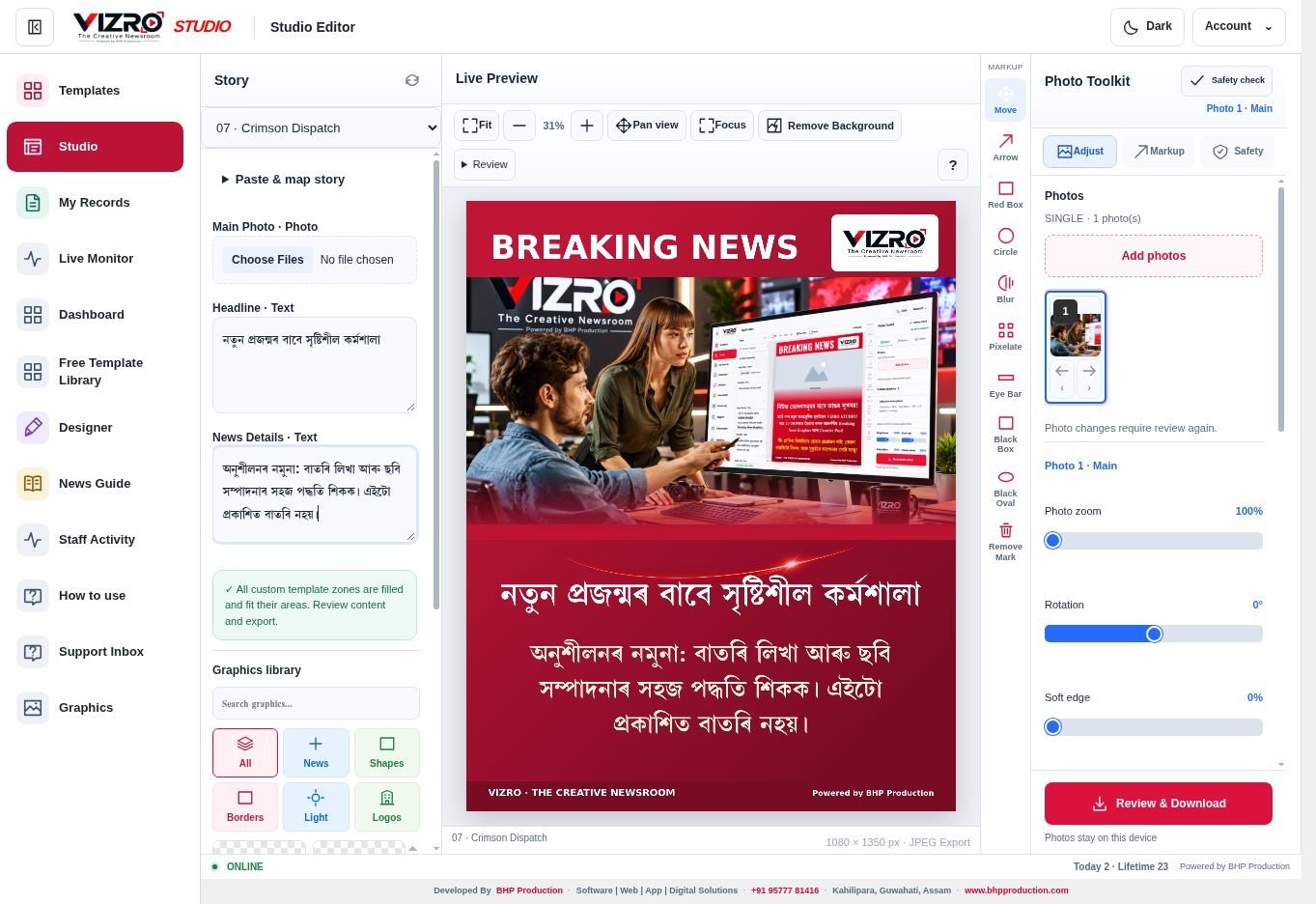
Lesson 2 / 5 · Your first news poster

Actual UI: Your first news poster
  1. Fill the Headline, News Details and Attribution fields needed for this story. Your chosen template decides which inputs appear.

  2. Watch the live preview while typing. Keep all text inside its area and resolve overset/missing-field warnings.

  3. Use Add photos: one image becomes Main; another single image becomes PIP; 2–5 selected together make a collage.

  4. When the poster is ready, use Review & Download. Review is required again after relevant photo or copy changes.

The pictured story is a training sample, not a published report.

Lesson 3 / 5 · Adjust the active photo

Actual UI: Adjust the active photo
  1. Select the photo’s numbered thumbnail first. Flip and Centre crop affect the selected photo. For zoom, rotation and soft edge, scroll within Photo Toolkit.

  2. Scroll lower for Brightness and Contrast. The percentage beside each control shows its current setting.

  3. Use Saturation, Frame zoom or Black & White as needed. Frame colour/zoom controls affect the photos in that frame.

  4. Reset Photo Edits restores those adjustments. Check the preview before reviewing/exporting.

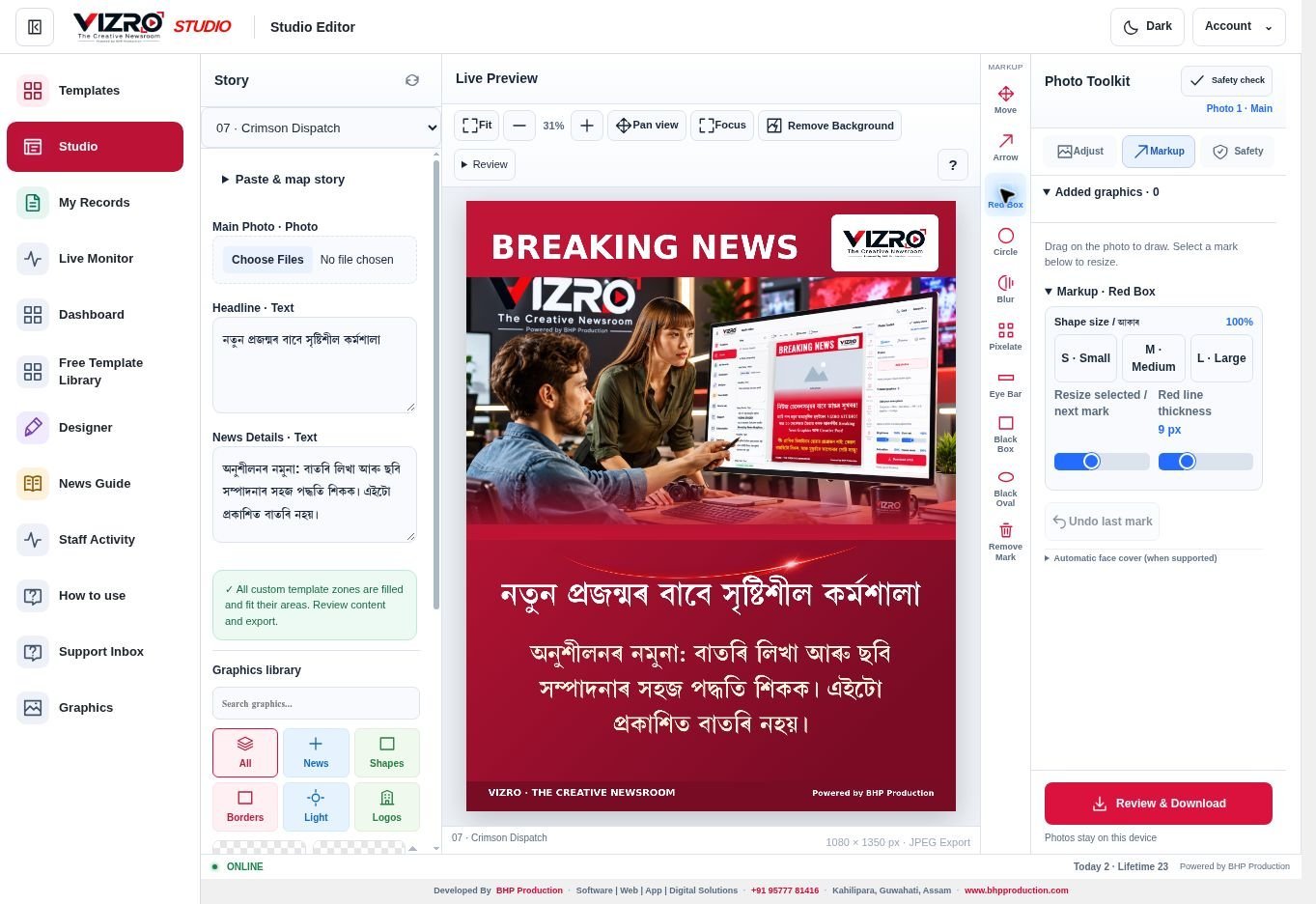
Lesson 4 / 5 · Draw markup on the photo

Actual UI: Draw markup on the photo
  1. Choose Red Box, Arrow, Circle or another tool from the slim Markup strip.

  2. Drag over the photo to draw the selected mark. Red Box highlights an area; it does not hide an identity.

  3. Adjust the mark’s size/thickness in the right panel. Use privacy tools such as Blur/Black Box when appropriate, then visually inspect every sensitive detail.

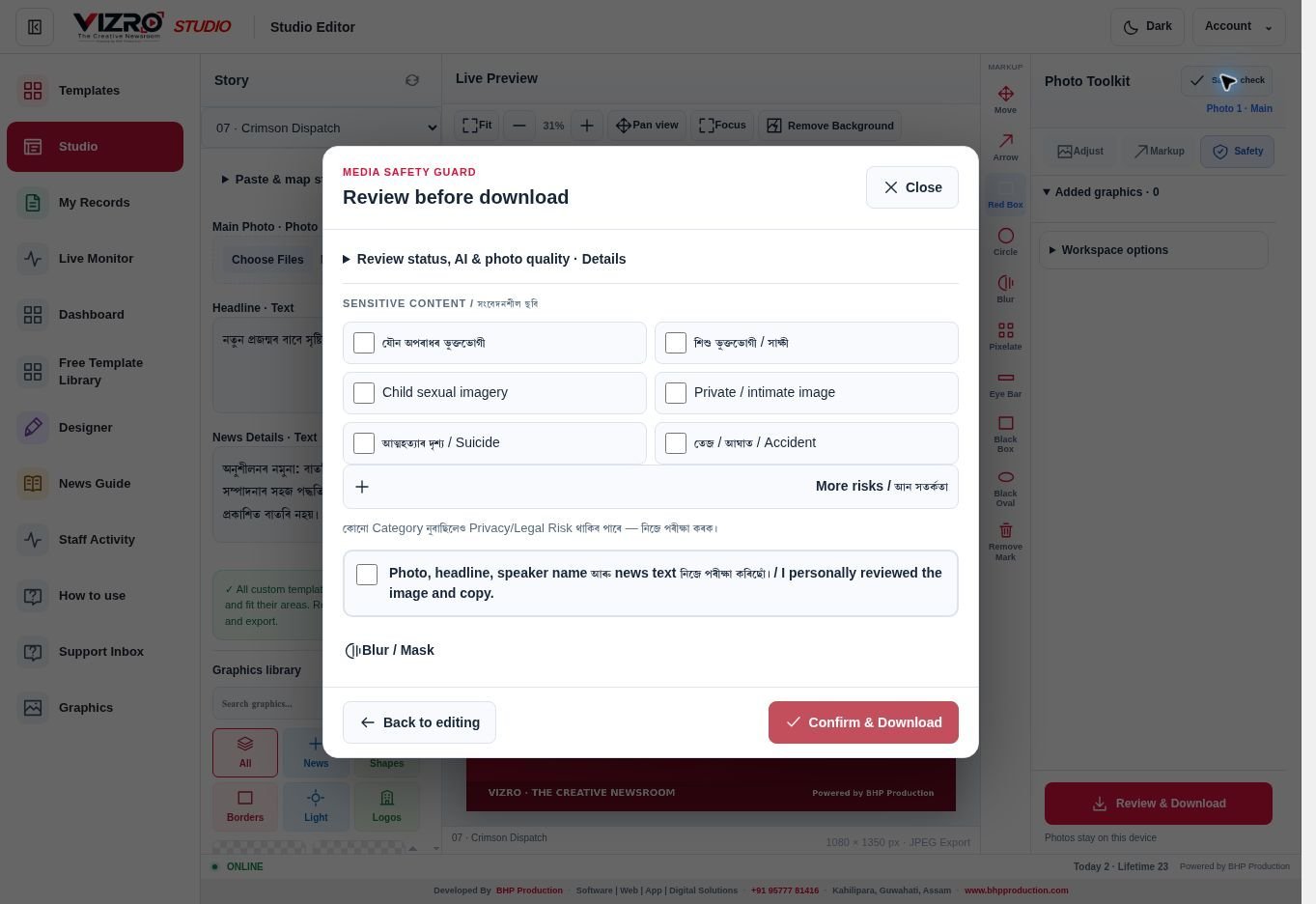
Lesson 5 / 5 · Review before download

Actual UI: Review before download
  1. Inspect the poster, image and sensitive-content categories. A category not selected is not a guarantee that the image has no privacy/legal risk.

  2. Only after personally checking the photo and all copy, acknowledge the review checkbox. Use Back to editing for corrections.

  3. Resolve blocking warnings, then Confirm & Download. Check the chosen output folder and the saved JPEG. Do not repeat the export while a save is pending.

Watch Video Guide · click to expand

Watch and learn · Video tutorial

A step-by-step walkthrough using real UI screenshots, with Assamese and English text. This is a screenshot video, without screen recording or narration. Pause and try each step.

The video loads when you press Play. Choose a language in the captions menu.