
Skip to content
VIZROVIZROSTUDIOHow to use

VIZRO STUDIO · HOW TO USE

See it. Learn it. Create it.

Follow numbered steps using App, Studio and Designer screenshots. Some pictured controls may differ from the current interface.

English / অসমীয়াActual UI capturesProduct v1.1.0-beta.27

Screens captured from the live staging UI, using training examples. Controls and positions can vary by role, template, device or release.

Choose “Enlarge screenshot” to read small controls. Swipe left/right inside the image; scroll up/down to continue the page. Follow the numbered instructions below.

DESIGNER

Designer User Guide

Layers, typography, mapping and publishing.

Choose a lesson in this section

Lesson 1 / 5 · Start a new template
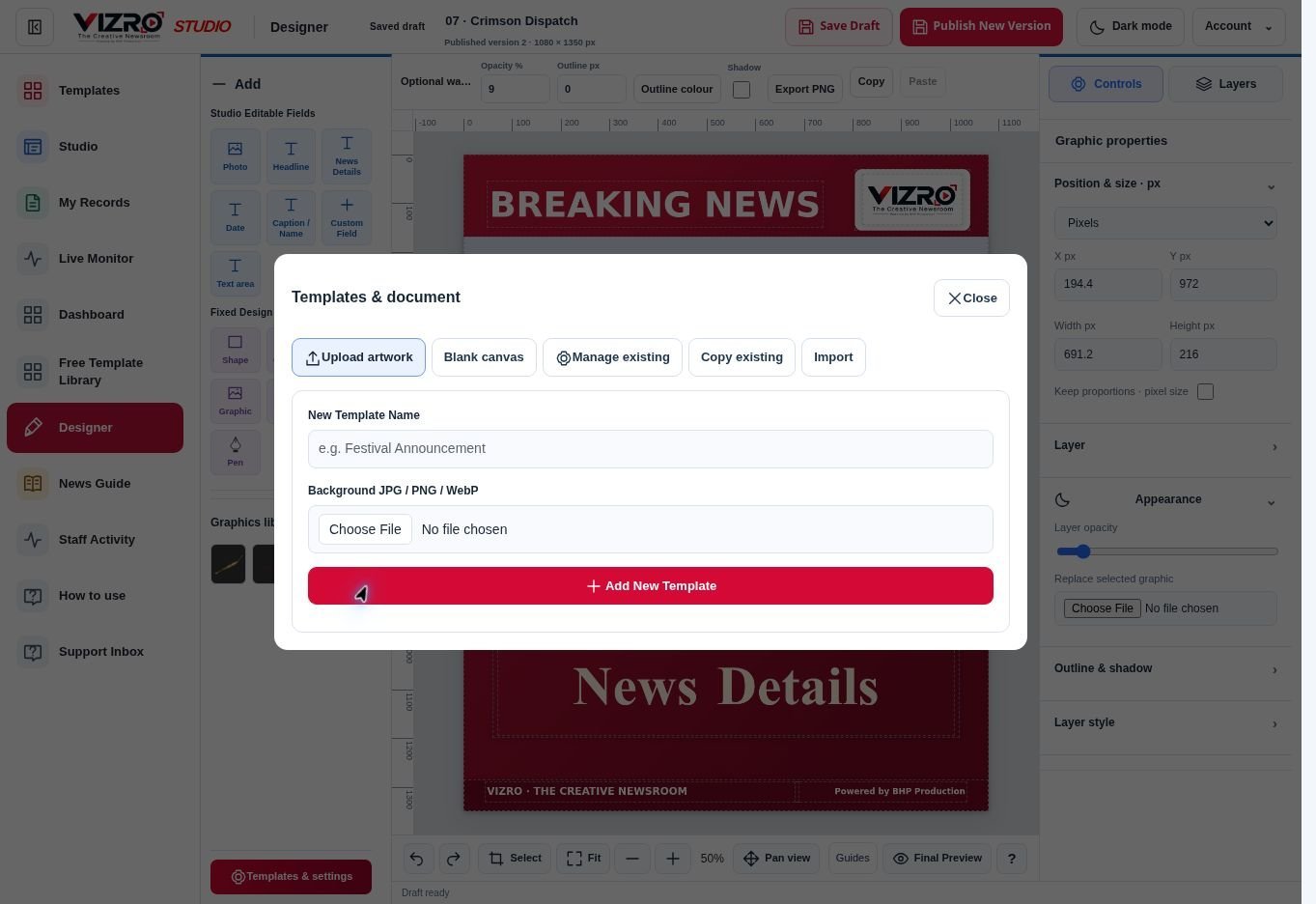
Actual UI: Start a new template
  1. Open Designer → Templates & settings. Choose Blank canvas. Import is a separate tab.

  2. Enter a template name and choose the canvas preset.

  3. Check Width and Height in pixels, then choose Create blank canvas.

  4. Add elements and save your own draft. The pictured dialog has not created a new template.
Lesson 2 / 5 · Layers, canvas and properties

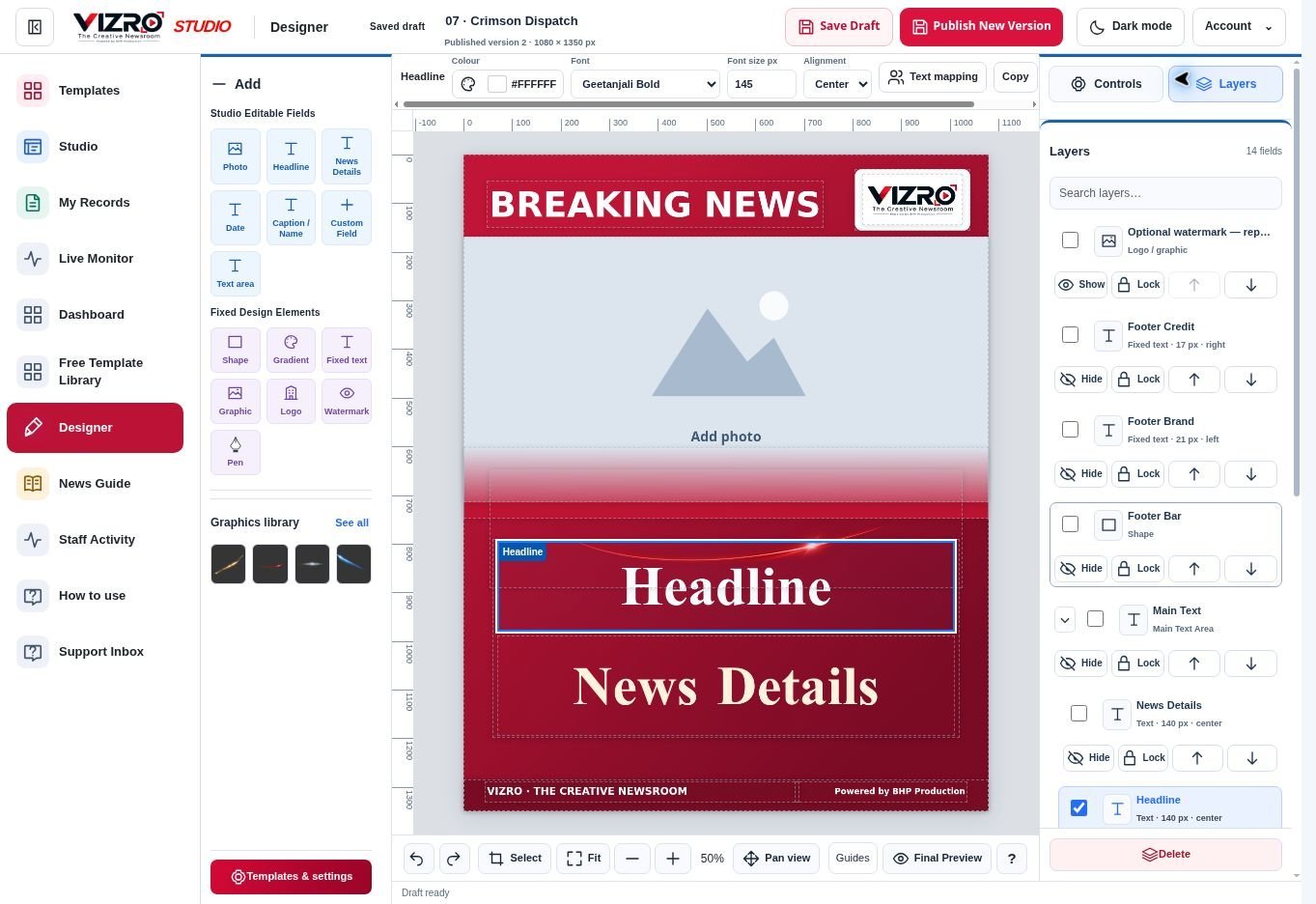
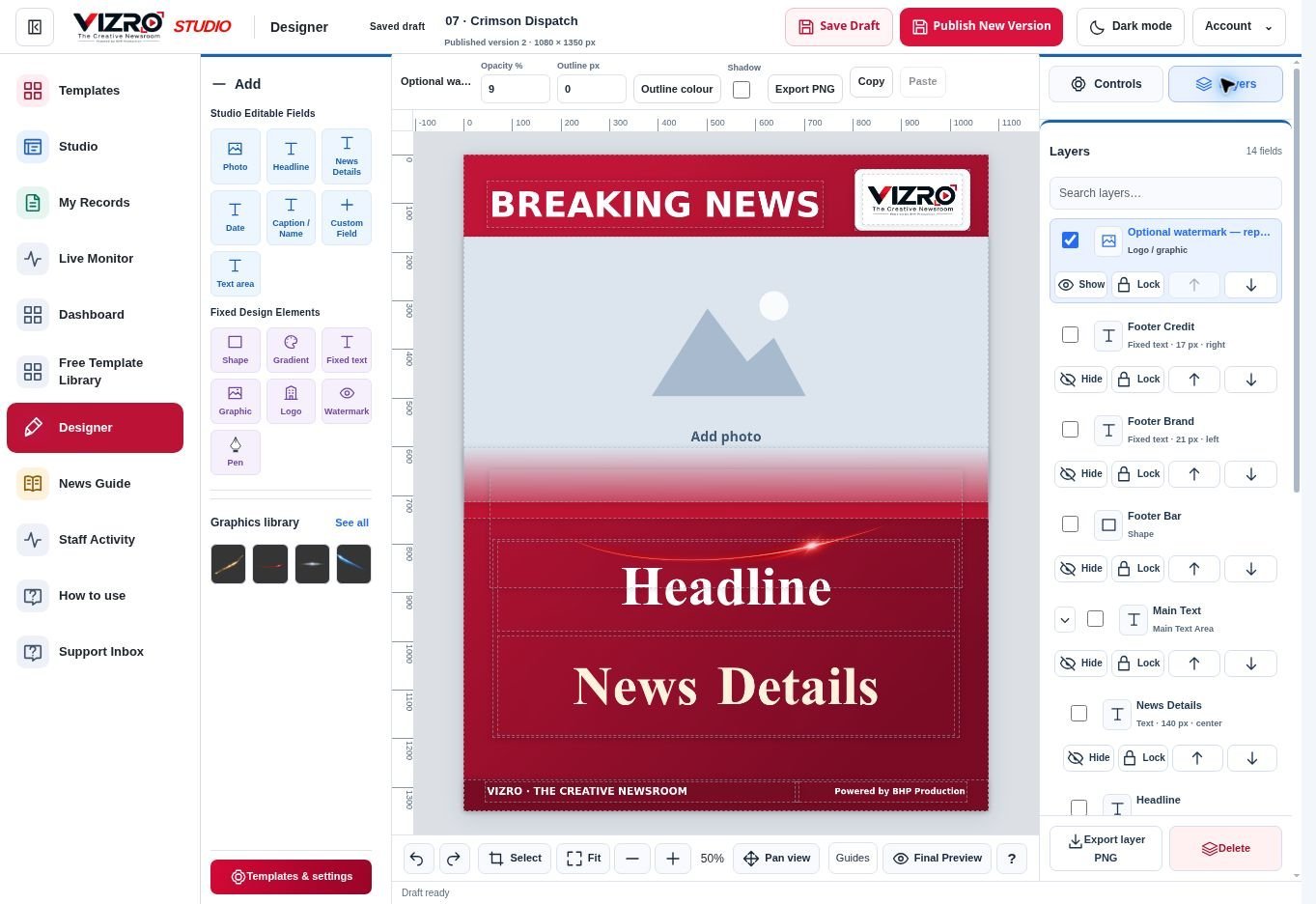
Actual UI: Layers, canvas and properties
  1. Use Add on the left to add editable fields or fixed design elements.

  2. Layers is a tab on the RIGHT, beside Controls. Select a layer by name there.

  3. Controls on the right show detailed properties. The fixed top toolbar shows quick controls for the selected layer.

  4. Use Fit, zoom and Pan below the canvas; drag from the outside rulers to add guides.

Lesson 3 / 5 · Text fields and typography

Actual UI: Text fields and typography
  1. Open Layers on the right and select Headline or another text layer. Return to Controls.

  2. Use the top toolbar for quick font, size and colour changes. Use Text & font in Controls for detailed settings.

  3. Check Assamese text in Final Preview. Save Draft only when the selected layer is correct.

Lesson 4 / 5 · Map pasted story labels

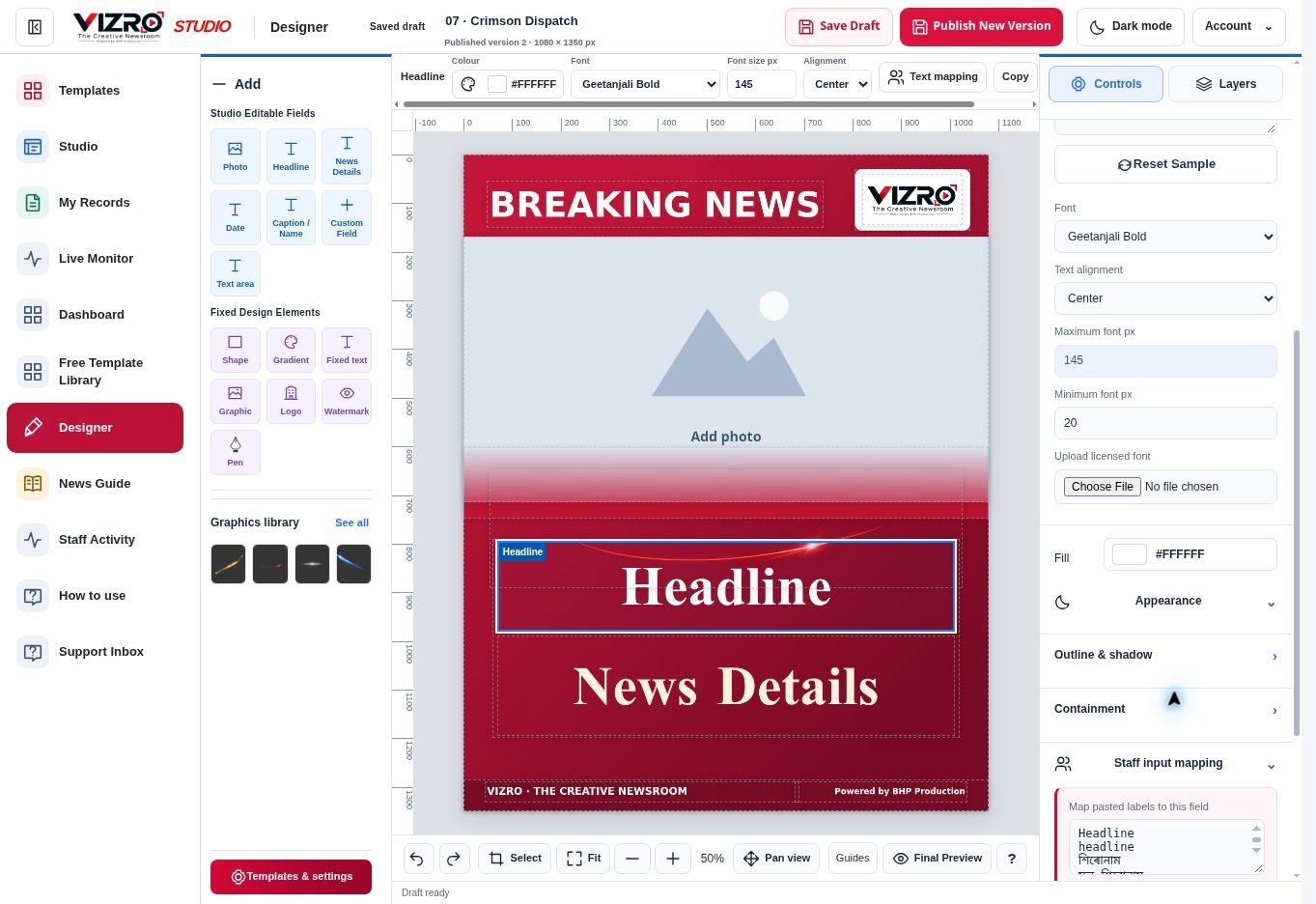
Actual UI: Map pasted story labels
  1. Select the editable text layer, then open Controls → Staff input mapping.

  2. In Map pasted labels to this field, put each accepted label on a separate line, for example Headline and শিৰোনাম.

  3. Choose Font size behavior for that field. Save Draft to retain the template changes.

  4. In Studio, open Paste & map story and test labelled lines such as “Headline: sample text”. Check the preview before export.

Lesson 5 / 5 · Save, preview and publish

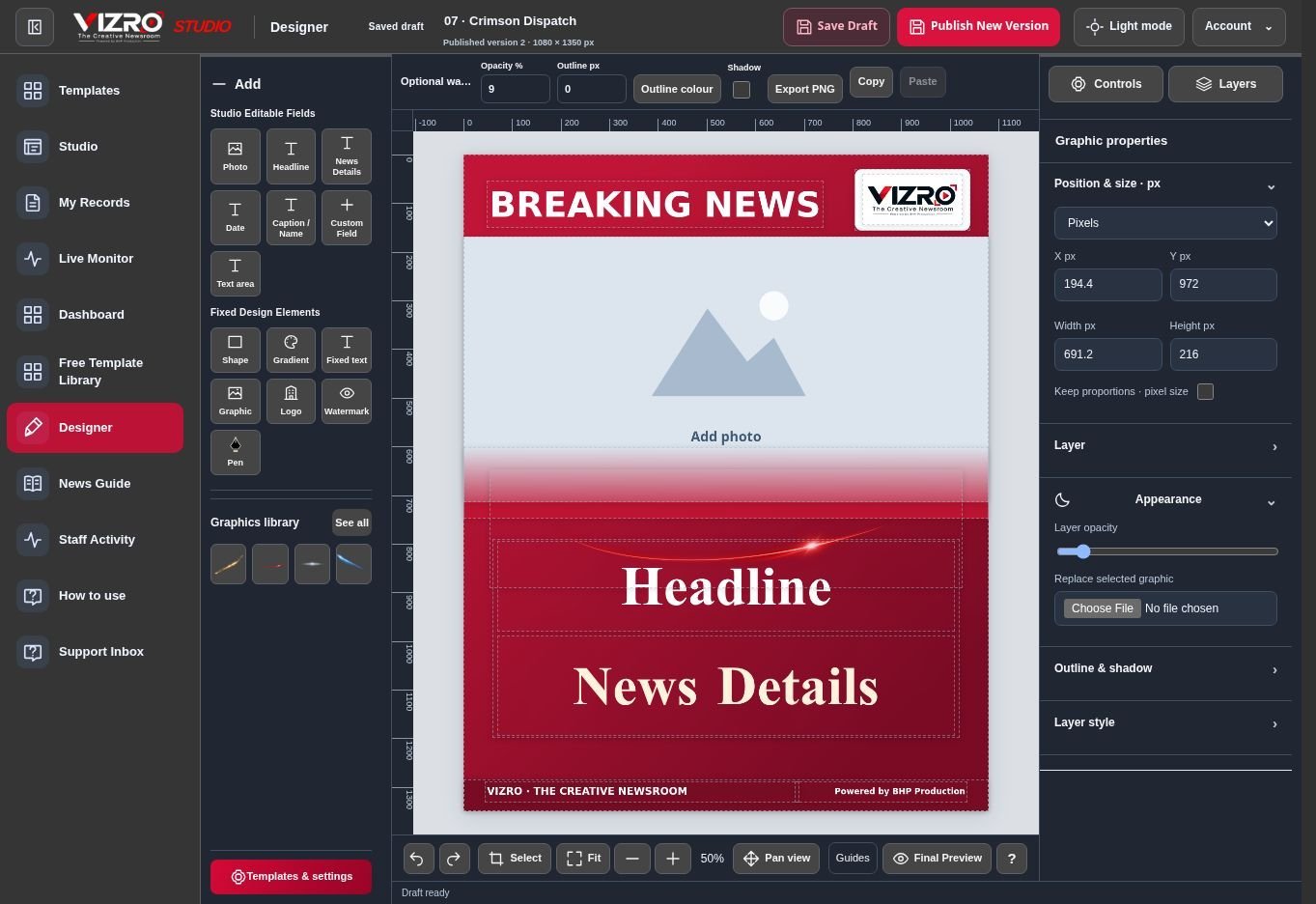
Actual UI: Save, preview and publish
  1. Preview the design and test realistic short and long copy. Check image frames, text boundaries, fonts and graphics.

  2. Save Draft and wait for the saved status. If saving fails, keep the window open and retry; do not assume unsaved edits are published.

  3. Publish / Publish New Version makes the approved template available to permitted users. Then open Templates and verify it in Studio.

Publish and template deletion change shared work. Verify the selected template and audience first. Designer chapters are shown only to accounts with design permission.

Watch Video Guide · click to expand

Watch and learn · Video tutorial

A step-by-step walkthrough using real UI screenshots, with Assamese and English text. This is a screenshot video, without screen recording or narration. Pause and try each step.

The video loads when you press Play. Choose a language in the captions menu.