Skip to content
VIZROVIZROSTUDIOHow to use

VIZRO STUDIO · HOW TO USE

See it. Learn it. Create it.

Follow the current website, from registration to saving your design, with real screenshots and numbered steps.

English / অসমীয়াActual captures · 13 Nov; Studio recovery · 17 Nov 2026Product v1.1.0-beta.389

These are real website captures with training content. No private OTP, customer invoice or fabricated payment success is pictured. Controls and colours depend on permissions, templates and appearance.

Choose “Enlarge screenshot” to read small controls. Swipe left/right inside the image; scroll up/down to continue the page. Follow the numbered instructions below.

CHAT

Chat & support

Mobile workflow and getting help.

Choose a lesson in this section

Lesson 1 / 2 · Create through VIZRO Chat
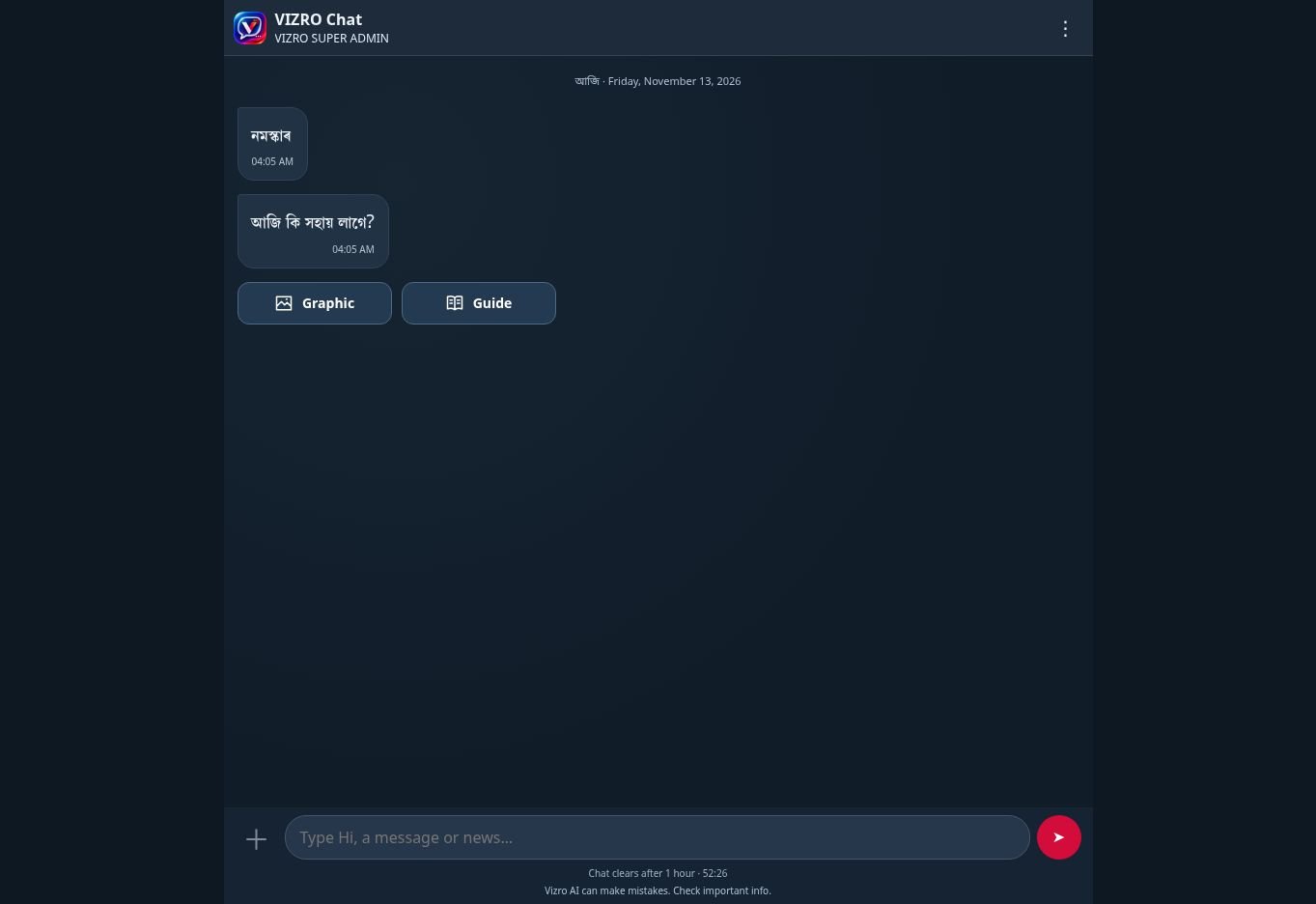
Actual UI: Create through VIZRO Chat
  1. Open VIZRO Chat on your phone or browser. Choose Graphic to create a poster, or Guide for help.

  2. Use the options menu to choose an available workspace template and your chat/caption language. Follow each text or photo prompt.

  3. Review the result before sharing. Chat clears after one hour; keep the final image and caption you need. AI output should be checked.
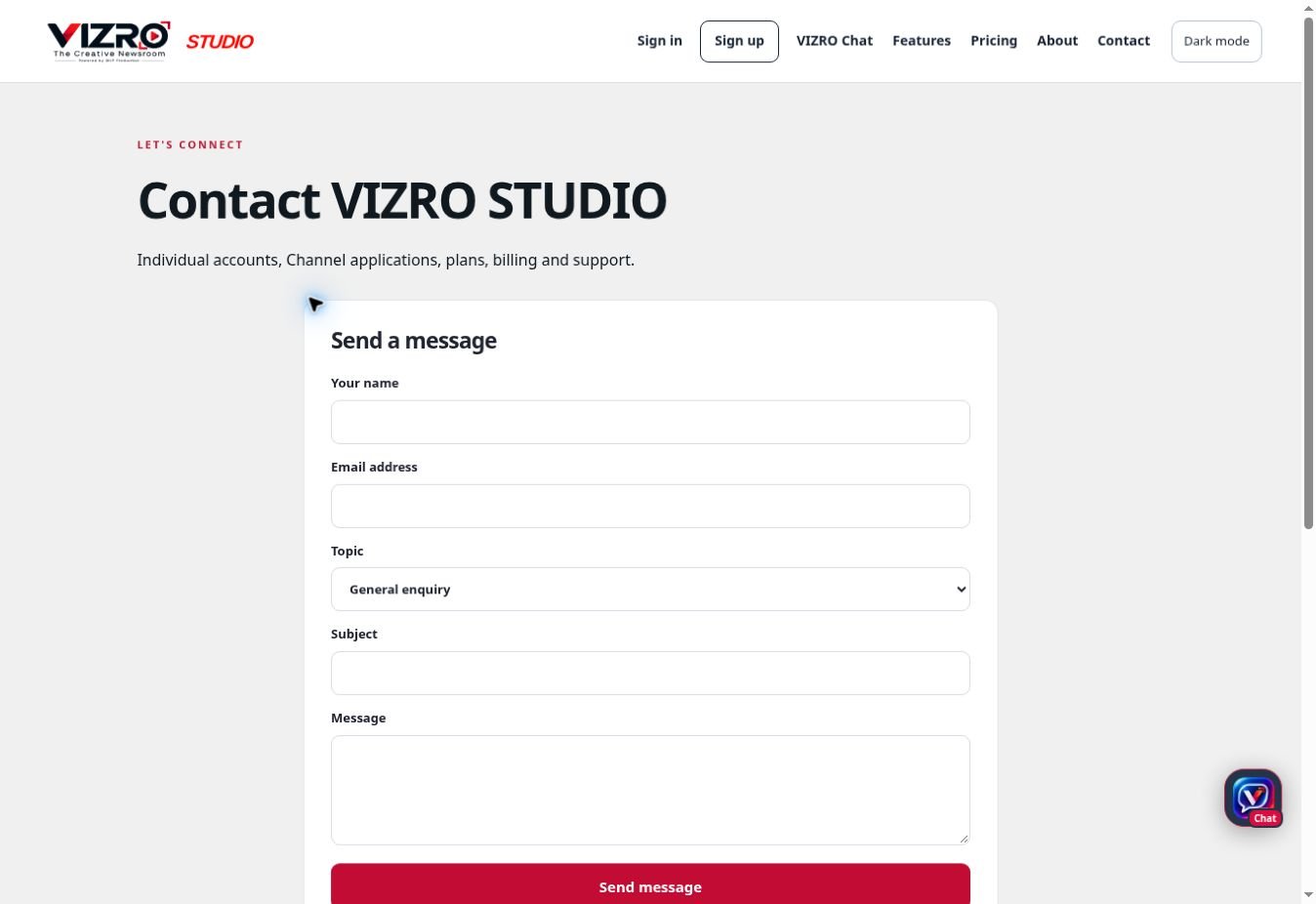
Open this page →

Lesson 2 / 2 · Get help with a problem

Actual UI: Get help with a problem
  1. For an existing account, use Support. Public visitors can use the Contact form.

  2. Include the page, steps and exact error. For payment help, include the order reference without card details or secret keys.

  3. Choose Payment or refund for a billing problem. A refund request is reviewed; submitting a request is not automatic approval.

Open this page →

Follow the updated screenshots and steps above for this release. Screenshot videos from older releases are not shown here.

বুটামটো টানি স্থান সলনি কৰিব পাৰে। কীব’ৰ্ডৰ কাঁড় চিহ্নৰেও স্থান সলনি কৰিব পাৰে।