Follow numbered steps using App, Studio and Designer screenshots. Some pictured controls may differ from the current interface.
English / অসমীয়াActual UI capturesProduct v1.1.0-beta.26
Screens captured from the live staging UI, using training examples. Controls and positions can vary by role, template, device or release.
Choose “Enlarge screenshot” to read small controls. Swipe left/right inside the image; scroll up/down to continue the page. Follow the numbered instructions below.
APP
Start with the app
Download, opening, login and output folders.
Choose a lesson in this section
Lesson 1 / 6 · Choose your app
1
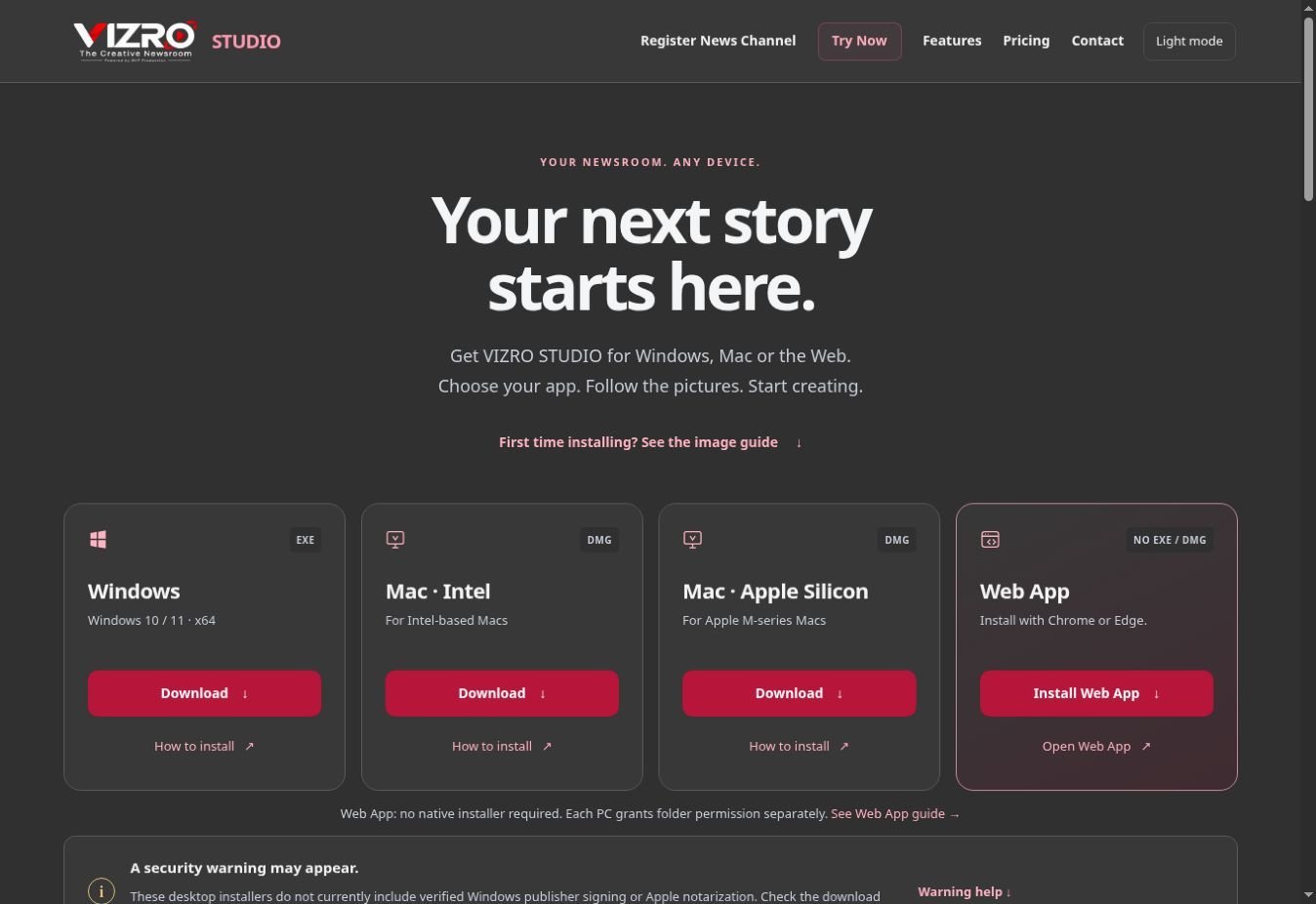
On Download, choose Windows x64 EXE or the Mac DMG matching your processor. The page has a separate installation image guide.
2
Mac users: About This Mac shows an Intel processor or an Apple M-series chip. Choose the corresponding installer.
3
For the Web App, use Chrome/Edge and Install Web App, or Open Web App. Browser permissions still apply.
Lesson 2 / 6 · Windows installation
1
Download the Windows EXE from the official Download page. Wait until the download finishes.
2
Open the downloaded EXE and check that it is the VIZRO installer you requested. Follow Setup, choose the destination and click Install.
3
When installation finishes, open VIZRO STUDIO from the desktop or Start menu. Continue at the login screen. If Windows blocks the file, verify the source with Support before proceeding.
The image shows the current web page; native installation and verification screens differ.
Lesson 3 / 6 · Mac installation
1
Open Apple menu → About This Mac. Choose Apple Silicon for an M-series chip, or Intel for an Intel processor.
2
Download the matching DMG from the official Download page. Open it and drag VIZRO STUDIO into Applications.
3
Open Applications → VIZRO STUDIO. Eject the mounted DMG afterwards. If macOS blocks opening, verify the installer with Support; do not disable system protection.
The image shows the current web page; native installation and verification screens differ.
Lesson 4 / 6 · Sign in to your workspace
1
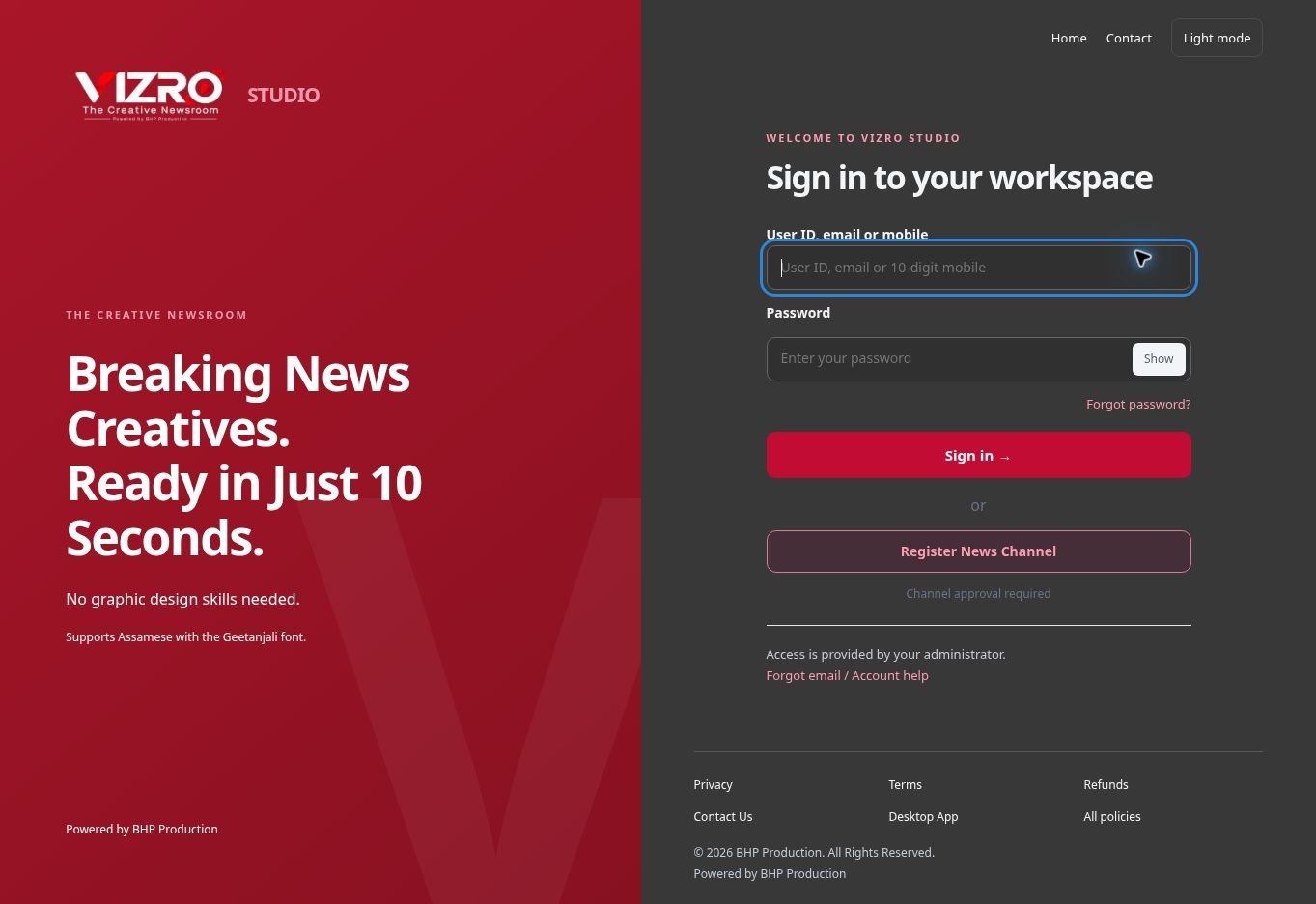
Enter the email or 10-digit mobile number registered by your administrator.
2
Enter your password. Use Forgot password? for an email reset link; never share your password or recovery code.
3
Click Sign in. If account access or payment is restricted, follow the account message or contact your administrator.
Lesson 5 / 6 · MPIN and trusted devices
1
On your first sign-in, enter your registered identity and password. Complete MPIN and Authenticator verification when requested. A new or revoked device must be verified.
2
On the same trusted device, reload, navigation, an update or closing and reopening the browser does not itself lock or log you out.
3
After midnight, active work continues. If your last MPIN unlock was on an earlier day and there has been at least one hour without genuine activity, enter MPIN to continue. After verification today, idle time does not ask again today.
4
Manual Lock Workspace always requires MPIN. Logout, expired or cleared cookies, revoked access or changed credentials may require full sign-in. Use account recovery if you lose your MPIN or Authenticator.
The image shows the current web page; native installation and verification screens differ.
Lesson 6 / 6 · Account, lock, appearance and updates
1
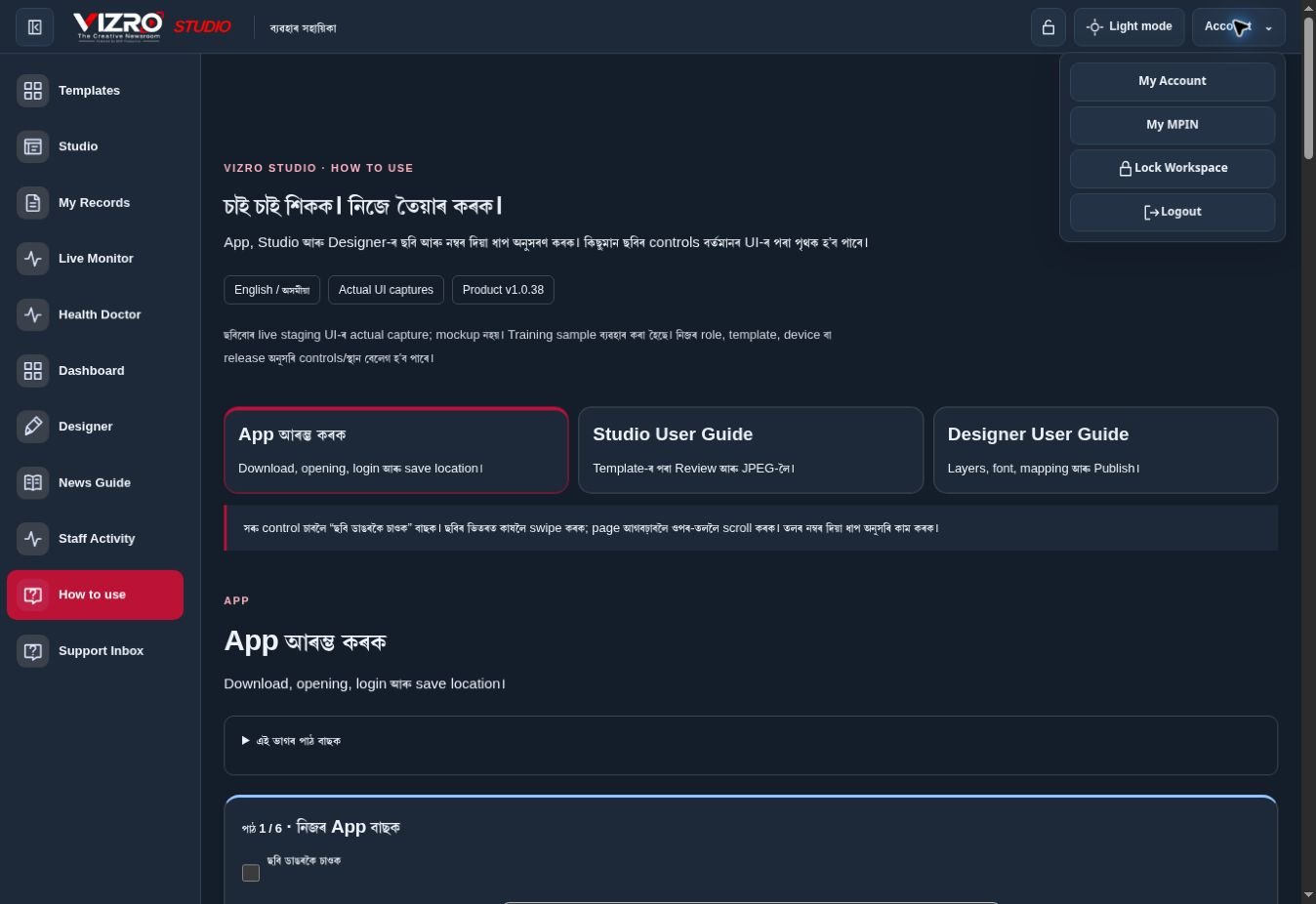
Account opens My Account, My MPIN, Lock Workspace and Logout. My Account shows your own account details.
2
The open-lock box before the appearance switch locks the workspace when selected. Enter your own MPIN to unlock; locking does not log you out.
3
Dark is the default. Choose Light mode to switch, or Dark mode to return; your own preference is saved. Assamese UI text uses Geetanjali; English keeps its existing font. Template artwork retains the font selected by its designer.
4
Technical releases say Bug and Security Update. Published resource editions say Special Edition with template, font or background. Finish or save your work before applying a reload. Closing a notice does not keep reopening it for the same release.
Captured from the staging workspace. Never share your MPIN or recovery codes.
Watch Video Guide · click to expand
Watch and learn · Video tutorial
A step-by-step walkthrough using real UI screenshots, with Assamese and English text. This is a screenshot video, without screen recording or narration. Pause and try each step.
The video loads when you press Play. Choose a language in the captions menu.